
How to Use TinO
New to TinO? Follow these simple steps to set up your account and start paying, riding, and ordering — all from one app.
Bank Card Setup Guide
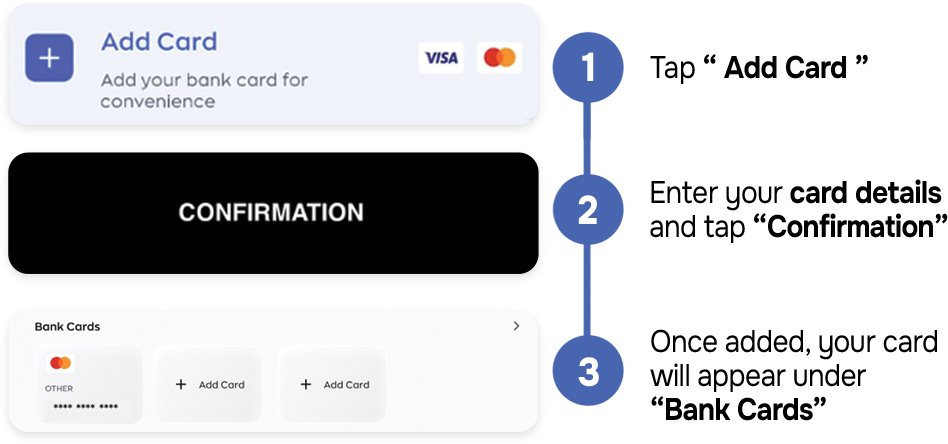
Add your bank card to Tino for a faster and more convenient payment experience.
-
Add your card
Tap “Add Card” to start linking your bank card to your Tino account. -
Enter your card details
Fill in the required card information, check that your details are correct, and tap “Confirmation” to continue. -
Access your saved card
Once successfully added, your card will appear under “Bank Cards”, where you can view and manage your saved payment methods.
Save your card once and enjoy a smoother payment experience with Tino.
Tino Taxi Pre-Booking
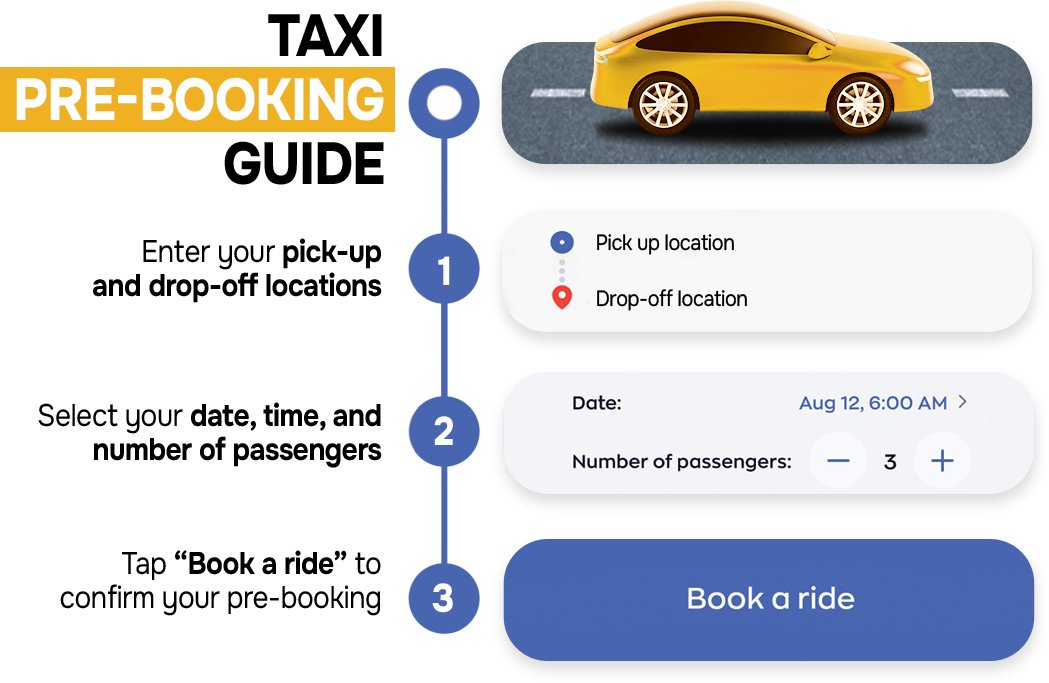
Planning ahead? With Tino Taxi Pre-Booking, you can schedule your ride in advance and travel with more peace of mind.
1. Set your route
Enter your pick-up and drop-off locations so we know where your journey starts and ends.
2. Schedule your ride
Choose your preferred date and time, then select the number of passengers traveling with you.
3. Confirm your pre-booking
Review your ride details and tap “Book a ride” to confirm your reservation.
Pre-book with Tino and have your ride planned before it’s time to go.
Taxi Booking Guide
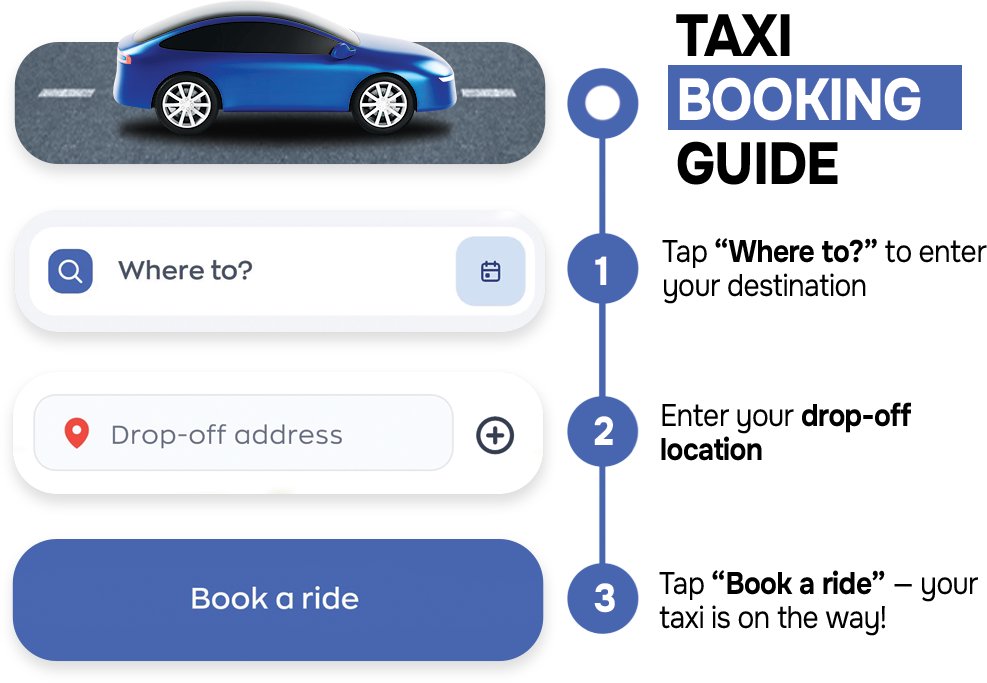
Booking a taxi with Tino is quick and simple. Just follow these three steps:
-
Choose your destination
Tap** “Where to?”** on the Taxi booking screen to start your ride request. -
Enter your drop-off location
Search for and select your destination. Double-check the address to make sure your driver takes you to the right place. -
Book your ride
Tap “Book a ride” to confirm your request. Once your booking is confirmed, your taxi will be on its way.
With Tino, getting where you need to go is just a few taps away.